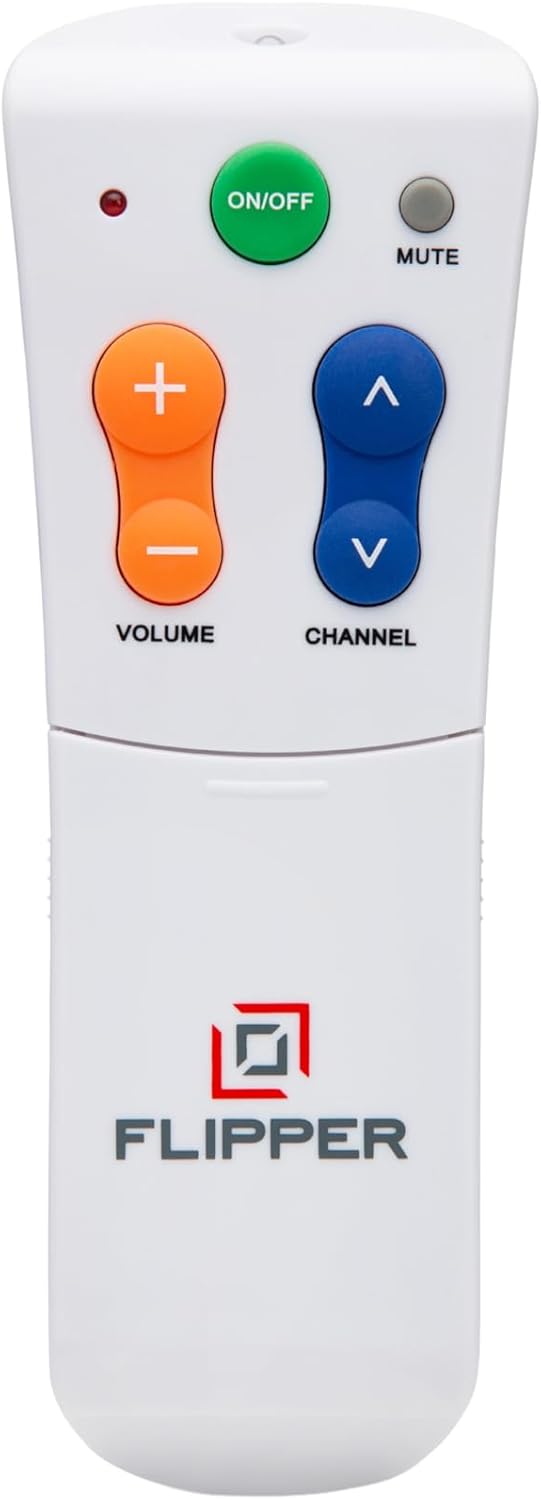
Flipper Big Button Universal TV Remote
Large buttons that are easy to see and press.
Check Price on AmazonWhy Modern TV Remotes Are So Frustrating for Seniors
Television remains one of the most important sources of entertainment and connection for older adults. News, sports, weather, game shows, and classic movies provide structure, comfort, and a link to the wider world. But the remote control that provides access to all of this content has become increasingly hostile to the people who rely on it most.
A typical cable or satellite remote has 40 to 60 buttons. Many are identical in size, shape, and color. They are labeled in tiny text or cryptic abbreviations: “SAP,” “PIP,” “DVR,” “INPUT.” For someone with low vision, the buttons blur together. For someone with arthritis, pressing the right tiny button consistently is physically difficult. For someone with early-stage memory loss, the sheer number of options creates anxiety and confusion.
The consequences are real. Pressing the wrong button can switch the TV to an unfamiliar input, change the audio language, open an on-screen menu with no obvious exit, or turn on closed captioning in a foreign language. When this happens, the senior may not know how to undo it. The TV becomes unusable until a family member visits or takes a phone call to troubleshoot.
In some cases, remote control frustration leads seniors to stop watching TV altogether, removing a significant source of daily enjoyment and mental stimulation.
What Makes a Good Simplified Remote
A senior-friendly remote is defined by what it leaves out, not what it includes. The best simplified remotes share these characteristics:
Fewer Buttons
The most important design choice. A good simplified remote has between 5 and 15 buttons on the main face. Power, channel up/down, volume up/down, and mute are the essentials. Everything else is optional. Fewer buttons mean fewer opportunities for confusion and a much easier time finding the right button by touch.
Large, Raised Buttons
Buttons should be big enough to press without precise finger placement. Raised or domed buttons are easier to locate by feel, which matters for seniors with low vision or who watch TV in dimly lit rooms. A button that requires deliberate, firm pressure prevents accidental activation when the remote is handled or set down.
Color Coding and Contrast
Using different colors for different button groups helps users identify functions at a glance. The Power button is typically red. Volume and Channel buttons should be clearly separated by position, color, or both. High contrast between the button face and the label text improves readability.
Favorite Channel Storage
The ability to store a list of favorite channels transforms the TV experience for seniors. Instead of scrolling through 200 or 500 channels, the user cycles through only the 10 to 25 channels they actually watch. This single feature eliminates one of the biggest daily frustrations.
Understanding Remote Control Technologies
Before choosing a simplified remote, it helps to understand the three types of wireless signals remotes use:
Infrared (IR)
IR remotes communicate using invisible light beams. They require a direct line of sight to the device they are controlling. Most TVs, cable boxes, and satellite receivers use IR. The Flipper Remote and most simplified remotes use IR signals. IR is reliable, well-established, and universally compatible with traditional TV setups.
Bluetooth
Bluetooth remotes pair directly with a device and do not require line of sight. Streaming devices (Roku, Apple TV, Amazon Fire Stick) typically use Bluetooth remotes. Most simplified remotes for seniors do not use Bluetooth, which means they cannot control streaming devices.
WiFi/RF
Some premium universal remotes and streaming device remotes use WiFi or radio frequency signals. Like Bluetooth, these do not require line of sight. They are uncommon in the simplified remote category.
Why This Matters
If the senior watches TV through a cable or satellite box, an IR simplified remote will work perfectly. If they watch primarily through a streaming device (Roku, Apple TV, Fire Stick, Chromecast), an IR remote will not control it. This is the single most important compatibility question to answer before purchasing.
Top Simplified Remote Options
For Cable and Satellite Users: Flipper Big Button Remote
The Flipper Remote is the gold standard for seniors on traditional TV setups. Six oversized, color-coded buttons on the front handle daily use. A sliding panel on the back provides number keys and the Favorites button. It stores 25 favorite channels and works with virtually all IR-based TVs and cable/satellite boxes.
For Streaming Users: Pre-Configured Roku Remote
If the senior uses a Roku device, the standard Roku remote is already relatively simple compared to cable remotes. It has a directional pad, a home button, and a few streaming shortcuts. You can simplify it further by placing small adhesive bumps on the most-used buttons and covering unused buttons with tape or a silicone sleeve.
For Mixed Setups: Label the Existing Remote
Sometimes replacing the remote is not practical. In these cases, you can simplify the existing remote by covering unused buttons with electrical tape or a custom overlay, and applying colored stickers or labels to the essential buttons. This low-tech approach works surprisingly well and costs nothing.
Setting Up a Simplified Remote
Plan to do the setup yourself or during a visit. Most seniors should not need to handle the programming process. Here is a general approach:
Step 1: Pair with the TV and Cable Box
Follow the remote’s instructions to enter the device codes for the TV brand and cable/satellite box. Most simplified remotes include a code list. The auto-search feature (available on the Flipper and similar models) cycles through codes automatically until it finds the right one. This step usually takes 2 to 5 minutes per device.
Step 2: Program Favorite Channels
Sit with the senior and ask which channels they watch. Write these down, then program each one into the remote’s favorites list. Be generous. If they mention a channel even occasionally, add it. It is much easier to have too many favorites than too few, and extra channels can be removed later.
Step 3: Test Everything
Verify that Power turns the TV on and off, Volume adjusts the sound, and Channel Up/Down cycles through the favorites list correctly. Test Mute. If the remote controls a cable box, verify that changing channels works as expected.
Step 4: Hide or Remove the Old Remote
This is crucial. If the original remote is sitting next to the new one, the senior may reach for it out of habit and immediately encounter the same confusion they had before. Put the old remote in a drawer or take it with you. Label the new remote with a piece of tape that says something like “TV Remote” so there is no ambiguity.
Tips for Labeling and Customization
Even a simplified remote can benefit from a few personal touches:
- Tactile markers: Place a small adhesive bump (available at hardware stores) on the Channel Up button. This lets the user find it by touch without looking.
- Written channel guide: Create a simple card listing the favorite channel numbers and what is on each one. Laminate it and keep it near the TV. “Channel 3 = CBS News. Channel 7 = Weather Channel.”
- Wrist strap: If the remote tends to fall between cushions, attach a bright-colored wrist strap or lanyard.
- Remote caddy: A small basket or holder on the side table gives the remote a designated home, making it easier to find.
What About Voice Control?
Voice-controlled TV (through Alexa, Google Assistant, or Siri) is sometimes suggested as a solution for seniors who struggle with remotes. In theory, saying “turn on CNN” is simpler than pressing buttons. In practice, voice control has significant limitations for many older adults.
Background noise, accented speech, and soft voices can all cause recognition failures. The wake words (“Alexa,” “Hey Google”) need to be remembered and spoken clearly. And when voice control does not work, the user still needs a remote as a fallback. For some tech-comfortable seniors, voice control is a great complement to a simplified remote. For most, it adds complexity rather than reducing it.
Making TV Accessible for Hearing Loss
Remote control simplification often goes hand in hand with addressing hearing challenges. If the senior turns the volume up to uncomfortable levels for others in the household, consider adding a wireless TV listening device (headphones or a personal speaker) rather than relying solely on the volume button. Closed captioning is another powerful tool, though turning it on may require navigating the TV’s settings menu once during setup.
When to Consider a Full TV Upgrade
In some cases, the TV setup itself is the problem, not just the remote. A senior with a 15-year-old TV connected to a cable box through a separate audio receiver has three remotes and a confusing input chain. Simplifying the remote only addresses one layer.
A modern smart TV with built-in streaming and a single, relatively simple remote can consolidate the entire setup. If the senior is due for a TV upgrade anyway, this may be a better long-term solution than adding a simplified remote to a complicated existing system.
The Bottom Line
A simplified TV remote is one of the cheapest, fastest quality-of-life improvements you can make for a senior. It costs $20 to $40, takes 15 minutes to set up, and immediately removes a daily source of frustration and dependence. For seniors on traditional cable or satellite, the Flipper Big Button Remote is the clear choice. For streaming users, simplifying the existing remote or choosing a platform with a minimal remote (like Roku) is the practical path forward. Either way, the goal is the same: make TV enjoyable again by getting unnecessary complexity out of the way.