
The Right Tablet for a Senior Who Has Never Used One
Finding the right tablet for seniors is harder than it looks. Walk into any electronics store and you will find rows of sleek devices with tiny icons, dense settings menus, and dozens of ways to accidentally delete something important. For an older adult who has never owned a tablet, the standard options can feel less like helpful technology and more like a puzzle with too many pieces.
That frustration is real, and it is worth taking seriously. The good news is that there is a purpose-built solution designed from the ground up for exactly this situation. After looking at what actually works for older adults who are new to tablets, one product stands out clearly.
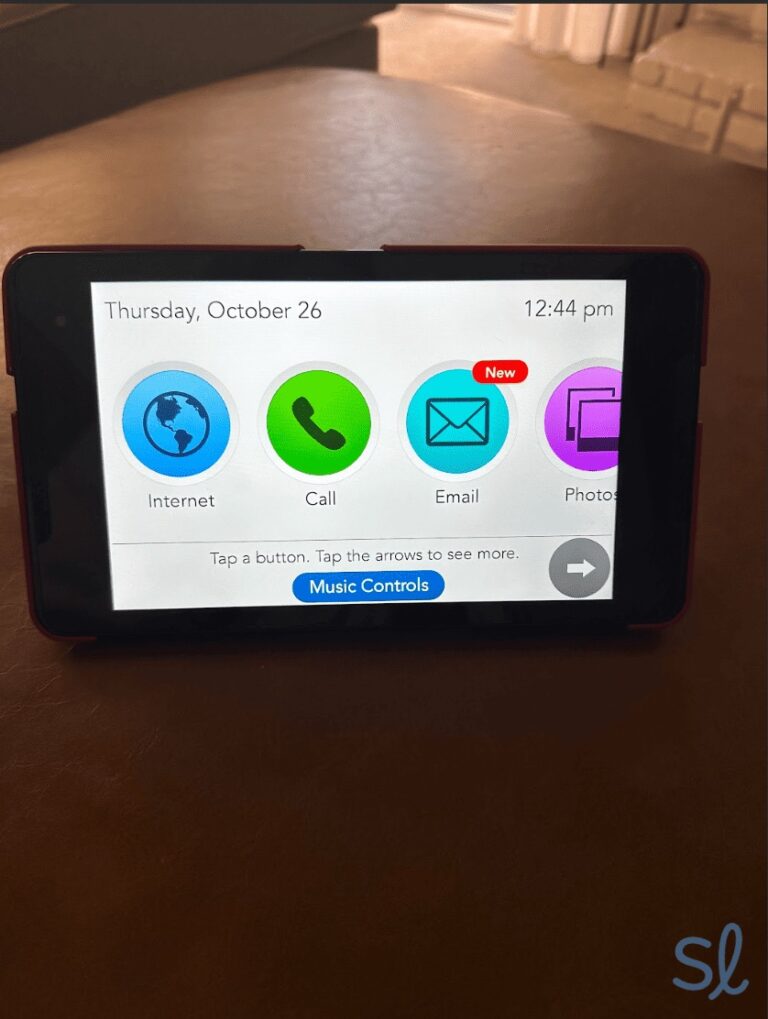
The GrandPad is not a simplified version of a regular tablet. It is a device built entirely around what seniors actually need: large buttons, a curated set of useful apps, no app store to get lost in, and built-in cellular connectivity so there is no WiFi setup required. For families who want to stay connected with an older parent or grandparent, it also includes remote management tools that let you add contacts, push photos, and support your loved one without needing to be in the room.
This article walks through why standard tablets fall short for most seniors, what makes the GrandPad different, what daily life with it looks like, and how to help a hesitant parent actually give it a try.
Why Standard iPads and Android Tablets Fail Most Seniors
The iPad is a genuinely excellent product, and so are the better Android tablets. They are designed for people who already know how technology works. That assumption shows up everywhere.
Too Many Options, Not Enough Clarity
Opening an iPad for the first time means navigating an App Store with over two million apps. There is no obvious starting point. Even the home screen can fill up with icons that mean nothing to someone who did not put them there. A senior who accidentally taps the wrong thing can find themselves in an unfamiliar screen with no clear path back. That experience alone can be enough to make someone give up.
Android is often even more fragmented. Different manufacturers skin the interface differently, so a Samsung tablet does not look or behave quite like a Lenovo tablet. Settings menus are buried inside other settings menus. Text is small by default, and while accessibility features exist, finding and enabling them requires navigating the very interface that is causing the problem.
Accidental Purchases and Privacy Concerns
App stores make it easy to accidentally buy something. A tap in the wrong place can trigger a purchase, a subscription, or a download of something unwanted. For seniors who are already cautious about scams and financial security, this is a serious concern. Standard tablets do not protect against it by default.
WiFi Setup Is a Genuine Barrier
Getting an iPad or Android tablet online requires connecting to a WiFi network, entering a password, and troubleshooting if something goes wrong. For an older adult who lives alone, that process can be a dealbreaker before the device ever gets used. If the router password is unknown, or if the network drops and the device needs to reconnect, a support call to a family member becomes necessary every time.
Small Text and Confusing Settings
Default text sizes on most tablets are too small for older eyes. Increasing them requires navigating to Settings, then Display, then Accessibility, then Text Size, and adjusting a slider. Even then, some apps ignore the system setting and display text at whatever size the developer chose. For someone with any degree of vision loss, the daily friction adds up quickly.
What Makes the GrandPad Different
The GrandPad was built by a team that started with a simple question: what would a tablet look like if it were designed for someone who has never used one? The result is a device that removes almost every barrier that makes standard tablets difficult for seniors.
Purpose-Built for Seniors
Every element of the GrandPad interface is designed for clarity. Buttons are large enough to tap easily, even with reduced dexterity. Text is big and readable. The screen is bright. There are no tiny icons, no hidden menus, and no notifications from apps demanding attention. The interface stays consistent, so the senior always knows where they are and how to get back to the home screen.
This is not the same as “senior mode” on a regular Android device. Those modes are retrofits. The GrandPad was designed this way from the start, which means the whole experience holds together instead of feeling like a workaround.
A Curated App List, No App Store
The GrandPad comes with a fixed set of apps that cover the things seniors actually want to do: video calling, sharing photos, listening to music, playing games, checking the weather, and staying connected with family. That is it. There is no app store. There is no way to accidentally download something, buy a subscription, or get tricked into installing malware.
For families worried about scams, this is a significant protection. The device simply cannot install apps that are not part of the curated list. That closed ecosystem feels limiting compared to a standard tablet, but for a first-time user who does not need hundreds of apps, it is exactly the right tradeoff.
Built-In LTE, No WiFi Required
The GrandPad includes a built-in LTE connection. It works anywhere there is cellular coverage, with no WiFi setup required. The senior does not need to know the network password. They do not need to troubleshoot when the internet goes down. They turn on the device and it works.
This one feature removes what is probably the single biggest technical barrier for seniors who live alone or who are not comfortable with networking. It also means the device stays connected when they travel or visit family, without any configuration changes.
Key Features: What You Can Do with a GrandPad
Video Calling
Video calling is the feature that matters most to most families. The GrandPad makes it simple: a contact appears as a large photo on the screen, and tapping it starts a call. There is no account to create, no app to open first, no username to remember. The senior just taps the face of the person they want to talk to.
Incoming calls work the same way. The screen lights up with a large photo of who is calling, and answering is a single tap. For a senior who struggles with the multi-step process of answering a video call on a smartphone, this simplicity matters enormously.
Photo Sharing from Family
Family members can push photos directly to the GrandPad through the companion app. The photos appear in a simple gallery that the senior can browse at any time. There is nothing for the senior to do to receive them. Photos just show up.
This is one of the features that tends to make the biggest difference in daily quality of life. An older parent who lives far from grandchildren can wake up to new photos every morning without needing to manage any accounts or figure out how to open an attachment. The family controls what arrives, and the senior just enjoys it.
Music, Games, and Weather
The GrandPad includes a curated music library that works without any streaming accounts or playlists to set up. Games are simple and designed for the interface. The weather screen is clear and readable. None of these features require the senior to do any configuration. They are just there, ready to use.
How Family Members Manage It Remotely
The GrandPad family app gives adult children and caregivers meaningful control without requiring them to be in the room. Through the app, family members can add and remove contacts, ensuring the senior only hears from people they know and trust. They can push photos to the device gallery. They can send messages that appear on screen in large text.
This remote management capability is one of the strongest arguments for the GrandPad as a tablet for seniors who live independently. A family member in another city can keep the device current, maintain the contact list, and make sure fresh content arrives regularly, all without a support call. If the senior has a question about something on the device, a family member can guide them over a video call while looking at the same interface.
The 24/7 support line is also worth mentioning. GrandPad provides live customer support at any hour. For seniors who are up late or who get confused at an unexpected moment, knowing help is a phone call away reduces anxiety about using the device at all.
The Monthly Service Model: Why It Is Worth It
The GrandPad operates on a monthly service model that includes the device, the cellular connection, and customer support. It is more expensive than buying a tablet outright and paying for a data plan separately. For families used to one-time hardware purchases, the subscription model can feel like an unusual ask.
The value, though, is in what you do not have to manage. There is no cellular plan to configure and maintain separately. There is no software to update manually. There is no technical support coming from the family, because GrandPad handles it. The monthly cost is largely paying for the removal of friction, which has real value when the alternative is a tablet that sits unused in a drawer because it was too confusing to set up.
For families with a parent or grandparent who has repeatedly tried and failed with standard technology, the GrandPad’s service model often ends up being a bargain compared to the hours spent troubleshooting other devices.
Helping a Reluctant Parent Get Started
Technology reluctance in older adults is almost never about capability. It is almost always about confidence and past experience. A senior who has been burned by confusing devices, accidental purchases, or embarrassing phone calls asking for help may simply have decided that technology is not for them.
Start with One Feature
Do not try to introduce everything at once. Pick the one feature that is most meaningful to your parent or grandparent and focus on that. For most people, video calling is the natural starting point. Show them how to call you, let them practice it a few times until it feels familiar, and leave everything else for later.
Once video calling feels comfortable, the rest of the device becomes much less intimidating. The senior has already learned that tapping a face does something predictable and good. That pattern carries over to everything else.
Be Patient with the Learning Curve
The GrandPad is designed to be simple, but simple does not mean instant. Some seniors will need to try something several times before it sticks. That is not a sign that the device is the wrong choice. It is just how learning works at any age, and it is especially true when the learner is also managing anxiety about making a mistake.
Keep early sessions short. End them on a success. Let the senior set the pace rather than rushing through features. The goal is for them to feel confident, not impressed.
Use the Family App Actively
The GrandPad only delivers value if family members engage with it. Set a reminder to push a photo once a week, or more often. Make video calls regularly in the early weeks so the senior gets in the habit of checking for incoming calls. The device works best when it is part of an ongoing connection, not just a piece of hardware that arrived in the mail.
Realistic Expectations: What the GrandPad Can and Cannot Do
The GrandPad is not trying to replace a smartphone or a full-featured tablet. It is designed to do a specific set of things well for a specific group of people. Understanding its limits upfront prevents disappointment.
The device does not have a web browser. There is no way to read news websites, shop online, or look things up on Google. For seniors who want that kind of open-ended access, the GrandPad is not the right fit. For seniors who mostly want to stay connected with family, look at photos, and have something simple to pick up during the day, the lack of a browser is not a problem and may actually be a feature.
The curated app list means there is no flexibility to add new apps. If a senior’s grandchild uses a particular messaging app that is not part of the GrandPad ecosystem, they will need to use the GrandPad’s built-in video calling instead. Again, for the right user, this is a reasonable constraint. For someone who wants to use a wide range of apps, it will be frustrating.
Battery life is solid for typical daily use, but the device does need to be charged. Setting up a simple charging routine, such as plugging in every night before bed, is worth establishing early so it does not become a barrier.
The Bottom Line
For a senior who has never used a tablet and whose family wants them to have a simple, reliable way to stay connected, the GrandPad is the right choice. It solves the problems that make standard tablets fail for older adults: confusing interfaces, small text, WiFi dependencies, accidental purchases, and the constant need for technical support.
It is the only tablet for seniors on the market that was built entirely around their needs rather than adapted from a device meant for someone else. The monthly service cost reflects a complete solution, not just hardware, and for families who have watched a parent struggle with technology before, that completeness is worth a great deal.
If the goal is a device that a senior will actually use, that will stay connected without setup hassles, and that will let families stay close across any distance, the GrandPad delivers on all of it.